


YouTube Studio
Google LLC
I use YouTube Studio as the control room for a YouTube channel rather than as a place to watch videos. That distinction matters. The mobile app is built for checking performance, responding to viewers, managing published uploads, and handling small channel tasks when I am away from a computer. It is free, made by Google LLC, and belongs to the video players and editors category, although its real purpose is channel management.
My first impression was that it saves me from opening a desktop browser every time I want to answer a comment or see whether a new upload is attracting attention. It does not replace every desktop tool, and I would not treat it as a complete video editor. However, for the routine work that keeps a channel moving, it is focused and practical. The app has a 4.4 average from around 2.2 million ratings, with more than 100 million installs, so it is clearly a familiar option for creators who need access to their channel away from a desk.
How I use YouTube Studio in a normal day
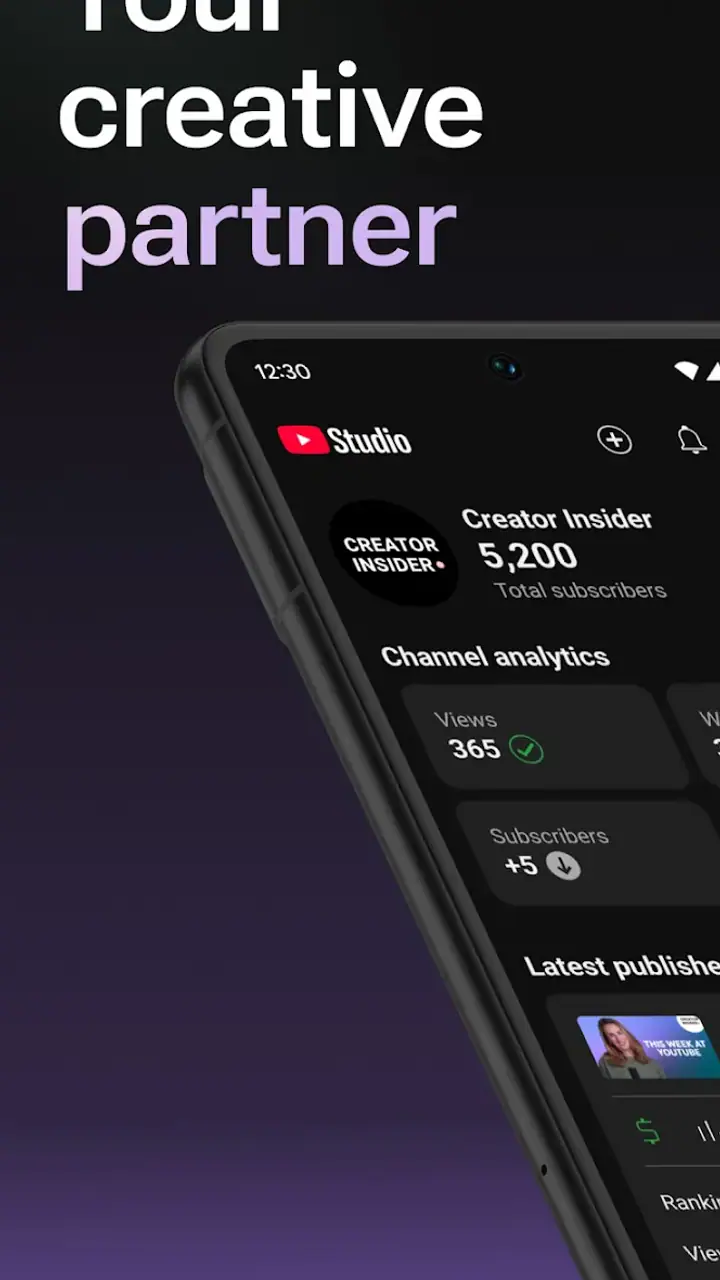
The most useful way to approach YouTube Studio is to build a repeatable check-in rather than open it randomly. I usually start with the dashboard, look at recent activity, and then decide whether anything needs action. That prevents me from getting lost in individual numbers before I have dealt with the things that actually require a response.
A realistic example is a creator who publishes a tutorial before leaving for work. During a lunch break, the app can be used to check the upload’s early performance, read viewer reactions, and answer useful questions while the discussion is still active. If a comment points out a missing step, the creator can respond from the phone and make a note for a future update. That is a much better use of the app than repeatedly refreshing the same screen without a decision in mind.
The content area is where I spend much of my time. It gives me a practical place to review published videos and other channel items, open an individual upload, and make available adjustments. I like this for small corrections: changing a title that is unclear, checking whether a description needs tidying, or reviewing the information attached to a video before sharing it elsewhere.
Related News

Why WhatsApp Messenger Still Makes Everyday Communication Feel Easy

Jurassic World: The Game Is the Better Dino Tycoon for Strategic Players

Threads in Real Life: Who Should Join, Lurk, or Leave

How SHEIN Turned Shopping Into an Endless Content Feed

How to Make Fortnite Feel Smarter on Mobile

Should You Switch to Microsoft Outlook on Mobile?
Comment management is another strong part of the everyday workflow. A busy channel can become difficult to follow if every message is handled in isolation. I prefer scanning for questions, answering comments that help other viewers, and leaving low-value exchanges alone. The app makes that possible without forcing me back to a full computer session.
Analytics are useful when I treat them as clues rather than a scoreboard. I look for changes over time and ask what might have caused them. Did a video attract attention from a different audience? Did viewers respond to a particular topic? Are people engaging with the upload but not continuing to other channel content? The app can help me inspect performance, but it cannot make the editorial decision for me.
That is the central strength of the mobile experience: it shortens the distance between noticing something and acting on it. A comment can be answered while the subject is fresh, a title can be corrected when I spot a mistake, and a performance change can be investigated before it disappears into a weekly routine.
Gallery
What I check before changing anything
I try not to edit a video simply because one number looks disappointing. A channel’s audience may need time to find an upload, and a short observation window can encourage unnecessary changes. My habit is to compare the video with the channel’s recent work, read a sample of comments, and ask whether the problem is presentation, topic, timing, or simply a normal difference between uploads.
This is where the app is helpful but also easy to misuse. Because information is available quickly, it can encourage impulsive decisions. Experienced use means turning quick access into a decision process: inspect, interpret, make one sensible change, and then give the result enough time to judge.
Settings that deserve an early review
New users should spend a few minutes checking the channel and notification settings instead of accepting the first arrangement they see. The right choices depend on how often the channel publishes and how many people help manage it. A solo creator may want direct awareness of comments and important channel activity, while a larger team may need a calmer notification pattern so that routine events do not bury urgent items.
Notifications are particularly important. If every alert interrupts your day, you may start ignoring all of them. I prefer a setup that makes meaningful activity visible without turning the phone into a constant stream of channel noise. The best arrangement is not necessarily the most detailed one; it is the one that lets you respond reliably.
It is also worth checking which channel identity is active before making edits. People who manage more than one channel can easily answer from the wrong account or change the wrong upload when moving quickly. I make a deliberate pause before publishing a reply or editing metadata. That small habit is more valuable than any shortcut because it prevents an avoidable mistake at the source.
For channels with several contributors, permissions and account roles should be handled thoughtfully through the appropriate YouTube management tools. I would not share a personal sign-in simply to give someone access to comments or uploads. The mobile app is convenient, but convenience should not replace basic account discipline.
Another useful setting check concerns how you interpret analytics. I do not treat every available metric as equally important. For a small educational channel, viewer questions and signs of continued interest may matter more than a single burst of attention. For a channel built around frequent uploads, the practical question may be whether the publishing routine is sustainable. The app presents information; the creator still has to choose the measurement that matches the channel’s purpose.
Small habits that make the app faster
The biggest speed improvement comes from grouping tasks. Instead of opening the app ten times to perform ten unrelated actions, I handle comments in one session, review recent uploads in another, and reserve deeper analytics for a quieter moment. This reduces context switching and makes it easier to notice patterns across several videos.
I also keep a simple mental order: urgent viewer issues first, accuracy checks second, performance review third. A misleading title or an unanswered correction may deserve attention before a minor fluctuation in reach. This order keeps the app connected to real channel quality rather than turning it into a numbers-only dashboard.
When I am preparing a video away from the computer, I use the mobile app for finishing work rather than pretending it is a full production suite. The phone is good for checking details, managing the upload’s presentation, and monitoring the result. For cutting footage, arranging a complex timeline, recording a polished voice-over, or designing detailed visual assets, I would use a dedicated editor instead.
That division of labor is important. YouTube Studio is not trying to be the same thing as a mobile video editor. Its value appears after or around production: organization, publishing decisions, audience interaction, and performance review. Using it within that boundary makes the experience feel focused instead of limited.
A useful repeatable routine is to review the latest upload, answer questions that benefit future viewers, check whether the title and description are clear, and then record one lesson for the next video. The final step is easy to skip, but it turns analytics into improvement. Without it, a creator can spend a lot of time looking at information and very little time learning from it.
For comments, I recommend writing replies that stand on their own. If one viewer asks how to complete a step, a clear answer can help everyone who reads the thread later. I avoid short replies that create another question unless the conversation genuinely needs more detail. This is a small editorial habit, but it makes channel interaction more useful and less exhausting.
Where the mobile workflow stops
The app’s limits become clear when a task requires precision or a large amount of text. Editing a long description on a phone is slower than doing it with a physical keyboard. Comparing several videos side by side can also feel cramped. If I need a broad overview of a channel’s history, a desktop view is usually more comfortable.
Analytics should be read with care as well. Mobile summaries are excellent for awareness, but serious planning often benefits from a larger screen and a written record of what changed. A quick glance can tell me that something is different; it rarely explains the full reason. I would not use a single mobile session as the basis for a major change in a channel’s direction.
Creators who expect built-in production tools may be disappointed. The app supports channel administration, not the complete creative process. Someone whose main goal is trimming clips, adding layers, arranging music, or producing polished effects should look at a dedicated editor and then use YouTube Studio for the channel-facing work.
There is also a mental limitation: constant monitoring can make creators chase short-term reactions. If you check performance every few minutes, ordinary movement can feel like a crisis. I find the app most valuable when it supports a schedule. Check at sensible points, make a reasoned adjustment, and return to creating instead of letting the dashboard dictate the day.
Compared with managing a channel through the regular YouTube app alone, Studio is more focused on creator tasks and gives me a clearer working space for channel activity. Compared with a desktop browser, it is quicker for short actions but less comfortable for detailed editing and broad comparison. Compared with a dedicated video editor, it solves a different problem entirely. The right alternative depends on whether the job is publishing, analysis, audience management, or actual video production.
I would recommend it to independent creators, small teams, educators, commentators, and anyone who needs to keep an eye on a channel while traveling. It is especially useful if your videos are already produced elsewhere and you mainly need reliable access to comments, uploads, and performance information. The free price removes the usual barrier to trying it, and its Teen content rating reflects that it is a creator-facing app connected to a broad video platform rather than a children’s editing toy.
I would skip it as a primary tool if your only goal is making videos on a phone. It is also not the best choice for someone who dislikes checking audience feedback or has no interest in channel analytics. In those cases, a dedicated editor or a simpler publishing workflow may be a better fit. The app becomes worthwhile when channel maintenance is part of your regular responsibility.
My verdict after building a routine around it
The real advantage is not that it puts every creator tool on a phone; it is that it makes the important small actions available at the moment they matter. That difference is easy to overlook. A creator who uses the app with a clear routine can respond faster, catch presentation errors, and learn from uploads without waiting to reach a computer.
I like YouTube Studio because it respects the practical side of running a channel. It does not turn every task into a production event. I can check a comment thread, inspect a recent upload, or review a performance change in a few minutes. At the same time, I would not confuse convenience with completeness. Detailed editing, serious comparison, and long-form planning still belong on a larger screen or in specialized software.
Google LLC has made this a mature companion for channel owners, and its release in June 2014 helps explain why it feels like an established part of the YouTube workflow. Its audience scale is also reflected in roughly 36 thousand written reviews, alongside the much larger pool of ratings. I see that popularity as a sign that the app fits a common need, not as a reason to ignore its boundaries.
My recommendation is straightforward: install it if you publish on YouTube and want a dependable mobile command center. Before relying on it, confirm the active channel, tune notifications, decide which metrics actually guide your decisions, and separate quick administration from full production. Used that way, YouTube Studio is a genuinely useful free app for keeping a channel healthy between desktop sessions, even though it is not a replacement for every tool a serious creator may eventually need.
FAQs for YouTube Studio
What is YouTube Studio and how does it benefit content creators?
YouTube Studio is a comprehensive tool designed for content creators to manage and optimize their YouTube channels. It offers insights into video performance, audience engagement, and revenue analytics. With features like video editing, comment moderation, and real-time analytics, it empowers creators to improve their content strategy and engage more effectively with their audience.
Can YouTube Studio be accessed on both Android and iOS devices?
Yes, YouTube Studio is available as a mobile app on both Android and iOS platforms. This allows creators to manage their channels on the go, providing flexibility to make updates, respond to comments, and check real-time analytics from anywhere, ensuring they stay connected with their audience at all times.
What features does YouTube Studio offer for video management?
YouTube Studio provides a variety of tools for video management. Creators can upload and edit videos, add thumbnails, and manage playlists. It also allows for detailed metadata editing, such as titles, descriptions, and tags, helping optimize videos for better discoverability. These features are crucial for maintaining a well-organized and engaging channel.
How does YouTube Studio assist with audience engagement and communication?
YouTube Studio facilitates audience engagement by providing creators with tools to respond to comments and messages efficiently. The app's comment management system highlights important interactions and filters spam, ensuring creators can maintain a positive community. Additionally, the analytics dashboard offers insights into audience demographics and behavior, helping tailor content to viewer preferences.
Is YouTube Studio free to use, and are there any hidden costs?
Yes, YouTube Studio is completely free to use for all YouTube content creators. There are no hidden costs associated with accessing its features. However, creators might incur costs related to other aspects of video production, such as editing software or promotional activities, but these are separate from the YouTube Studio app itself.
Pros
- User-friendly interface for easy navigation.
- Real-time analytics for immediate insights.
- Customizable dashboard for tailored views.
- Efficient comment moderation features.
- Built-in video editing tools enhance productivity.
Cons
- Limited features compared to desktop version.
- Occasional lag in loading analytics data.
- Push notifications can be overwhelming.
- Some features require internet connection.
- Editing tools lack advanced functionalities.


